Features/Quick capture
- Global quick-capture
- A passing thought shouldn't make you switch windows. Bind a desktop shortcut and a small always-on-top capture box pops up over any app — with the full Tine editor — and files what you type straight into your graph. Tine doesn't even need to be focused.
- What it looks like
- Set it up (Linux, one time)
- Tine listens for a launch with the
--captureflag, so bind a global keyboard shortcut in your desktop environment to runtine --capture:- GNOME — Settings → Keyboard → View and Customize Shortcuts → Custom Shortcuts → +. Command:
tine --capture. Pick a key like Super+N. - KDE — System Settings → Shortcuts → Add → Command/URL. Command:
tine --capture. - Other desktops — add a custom keyboard shortcut that runs
tine --capture. Use the binary's full path if it isn't on yourPATH.
- Now press your shortcut from anywhere — the box appears, you type, and it's saved.
- Where your capture goes
- Leave the title empty → the text is appended to today's journal. This is the fast path: hotkey, type, done.
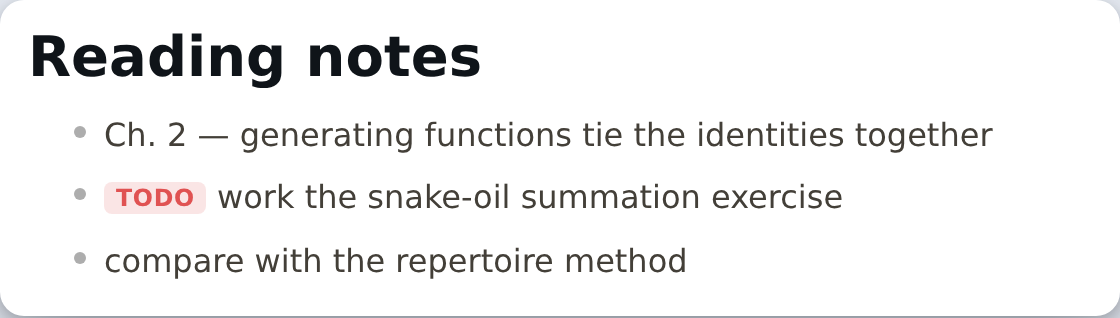
- Type a page title (the field at the top of the window) → it's filed to that page instead, created if it doesn't exist yet. Perfect for "add this to my Reading notes" without leaving what you're doing.
- It's the real editor in there:
[[page links,#tags,/slash commands, and nested bullets all work.
- Tune the Enter key
- By default Enter starts a new bullet and Ctrl+Shift+Enter files the capture (so you can jot several lines first). Prefer Enter-to-file? Open Settings and flip Quick-capture: Enter key.
- The box auto-grows as you type, and it keeps your draft if it loses focus — only Esc or filing it clears the text.